While you're joining your Windows 10/11 device to your work or school network, the following actions will happen:
Windows registers your device to your work or school network, letting you access your resources using your personal account. After your device is registered, Windows then joins your device to the network, so you can use your work or school username and password to sign in and access restricted resources.
Optionally, based on your organization's choices, you might be asked to set up two-step verification through either two-step verification or security info.
Optionally, based on your organization's choices, you might be automatically enrolled in mobile device management, such as Microsoft Intune. For more info about enrolling in Microsoft Intune, see Enroll your device in Intune.
You'll go through the sign-in process, using automatic sign-in with your work or school account.
If you've had your device for a while and it's already been set up, you can follow these steps to join your device to the network.
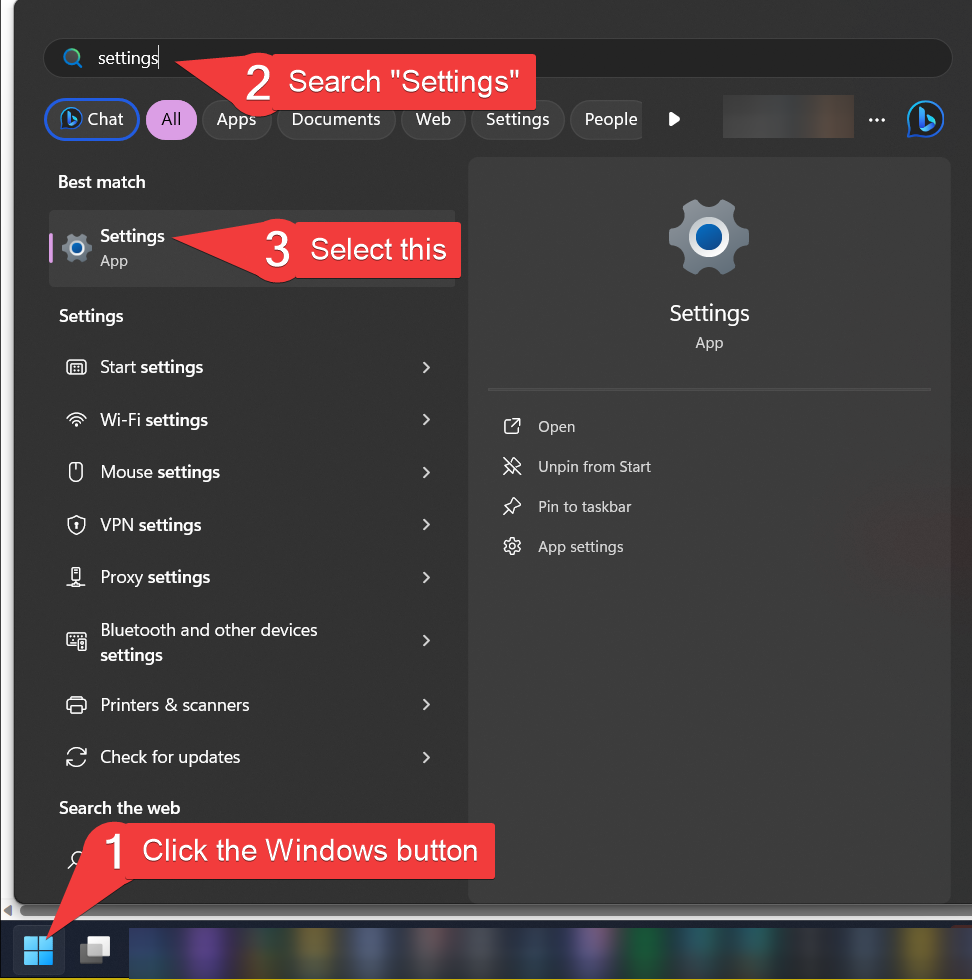
Open Settings, and then select Accounts.
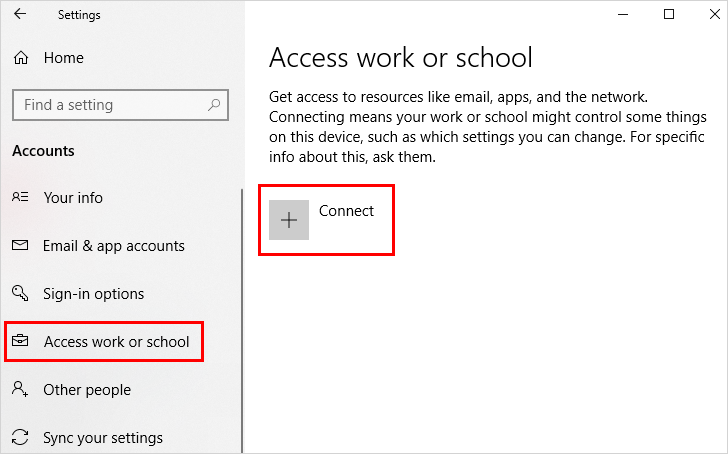
Select Access work or school, and then select Connect.
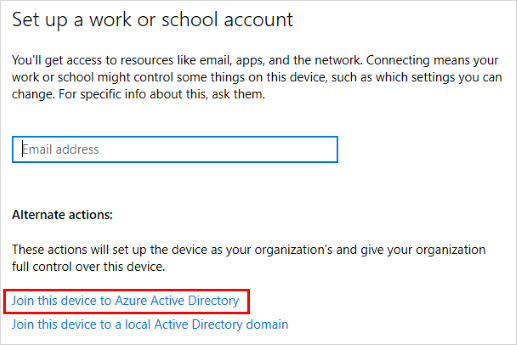
On the Set up a work or school account screen, select Join this device to Azure Active Directory.

On the Let's get you signed in screen, type your email address (for example, [email protected]), and then select Next.

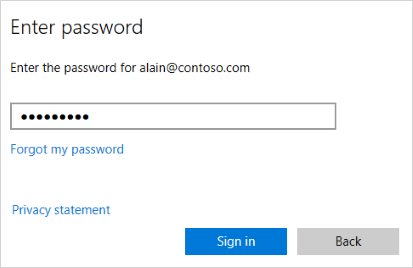
On the Enter password screen, type your password, and then select Sign in.
On your mobile device, approve your device so it can access your account.
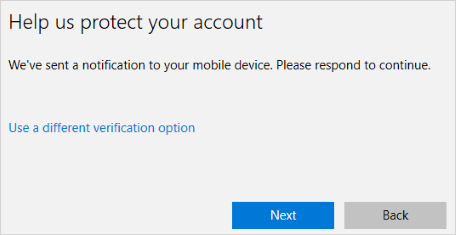
On the Make sure this is your organization screen, review the information to make sure it's right, and then select Join.

On the You're all set screen, click Done.
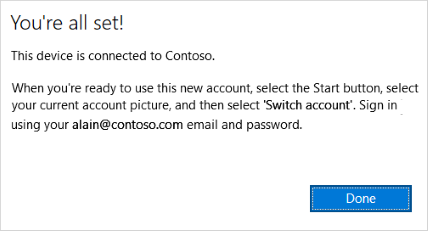
You can make sure that you're joined by looking at your settings.
Open Settings, and then select Accounts.
Select Access work or school, and make sure you see text that says something like, Connected to <your_organization> Azure AD.
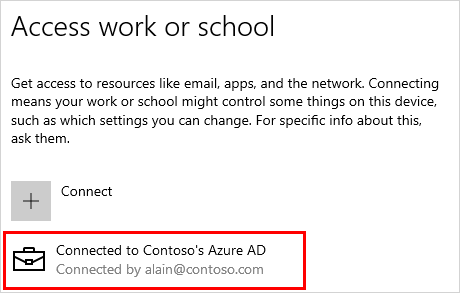
After you join your device to your organization's network, you should be able to access all of your resources using your work or school account information.
